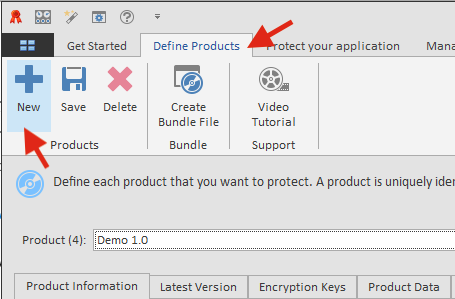
The first step in creating license keys for your products is to define each product. Click on the Define Products tab and then click on New.
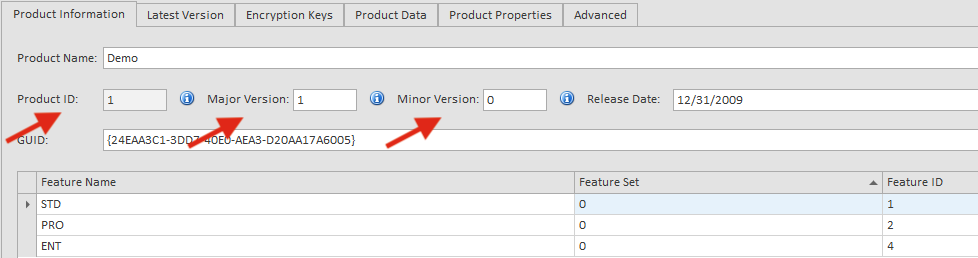
Enter the Product Name, the Major and Minor version of the product. The Product ID and the GUID fields are automatically generated. You will need these values when you use the API to validate license keys. You may also associate up to 32 features with each of your products.
If you are evaluating QLM, we recommend that you use the Demo 1.0 product during the trial period.
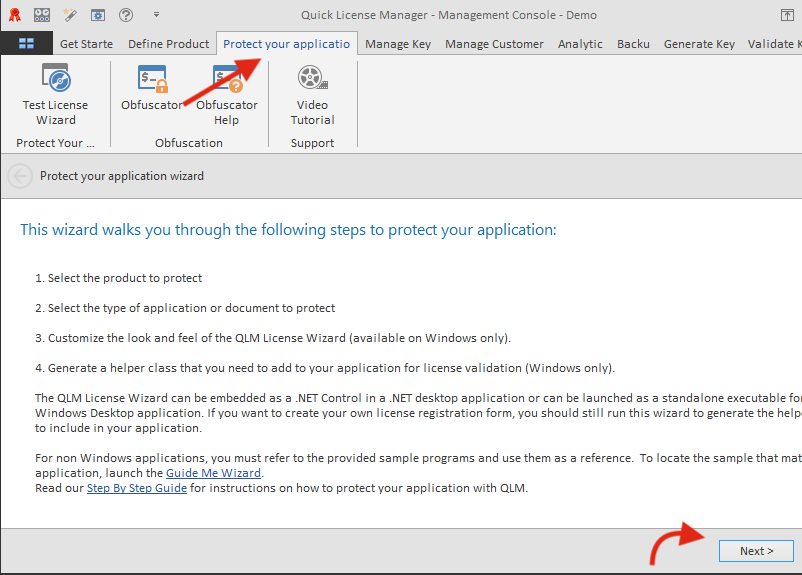
The simplest way to integrate QLM to your application, is to use the QLM License Wizard standalone application.
The QLM .NET Control provides a ready-to-go license activation form. If your application is developed in .NET, check out this tutorial for a step by step instruction on how to integrate using the QLM .NET Control.
If your application is not a .NET application, you can use the QLM License Wizard standalone application to manage the license activation process. For a tutorial on how to use the QLM License Wizard, click here.
Of course, you can always create your own license registration form and use our extensive API to manage license validation and activation.
For details about modifying your application to implement floating licenses, refer to the Step by Step guide.
Below are step by step instructions to integrate QLM in your application:
ValidateLicenseAtStartup function (found in the generated code above).ValidateLicenseAtStartup function returns false, it means there is no valid license and you must prompt the user for a license.For more details about specific APIs, refer to the API reference found in the online help.
Several sample applications are included in the Samples folder developed in VB6, VC6, VB.NET, C#, VC7, and Excel.
Once you have defined your products, you can generate license keys for each product. There are 2 types of license keys: permanent, and evaluation/subscription keys. Evaluation/Subscription keys can specify the duration of the license, an expiry date or both.
Prior to creating license keys with QLM Enterprise, you need to setup the QLM License Server and a database that will host the license keys. For instructions on installing the QLM License Server and the database, refer to the help.
For evaluation purposes, Soraco provides a demo License Server and a database. The only restriction of our demo web service is that you cannot publish your products to the License Server; you can only work with the default product Demo. Additionally, note that the database content on the demo License Server is regularly reset.
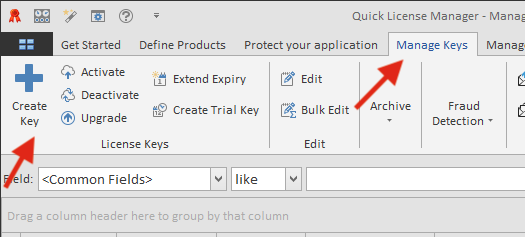
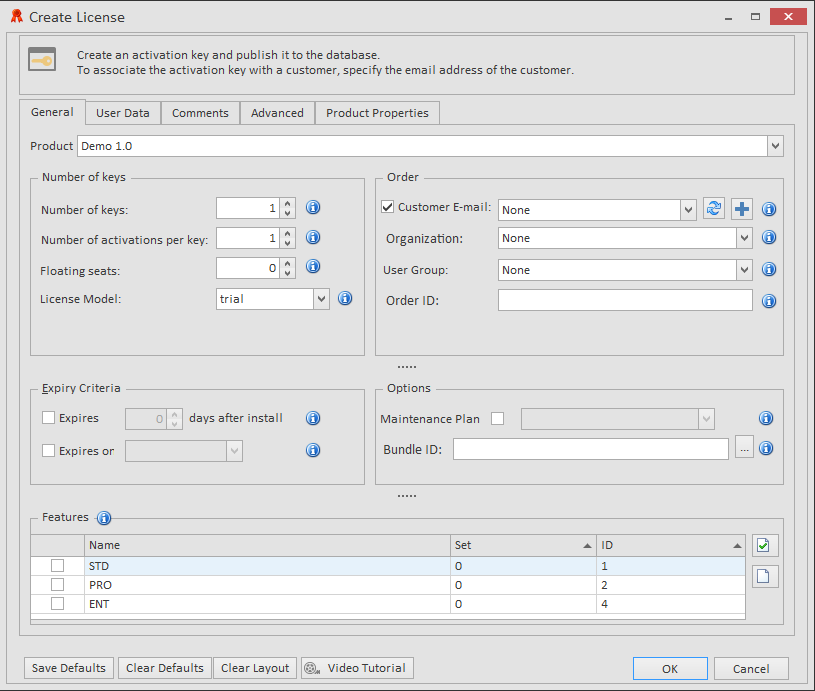
To generate license keys with QLM Enterprise, click on the Manage Keys tab, then click on the Create button. Select a Product, the number of floating seats, the type of keys to generate and then click on the OK button. QLM stores the generated keys in a database.
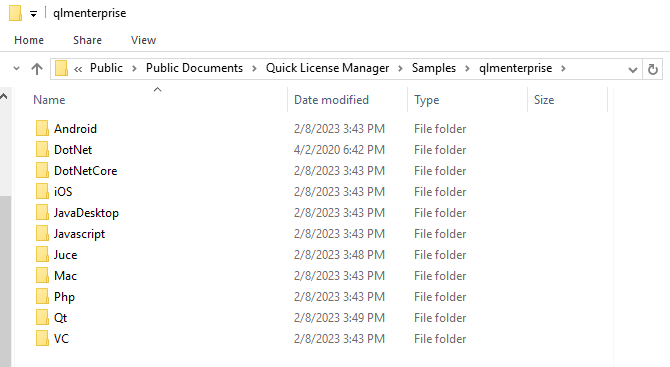
All QLM Enterprise samples are located in the folder:
Samples are grouped by programming language.