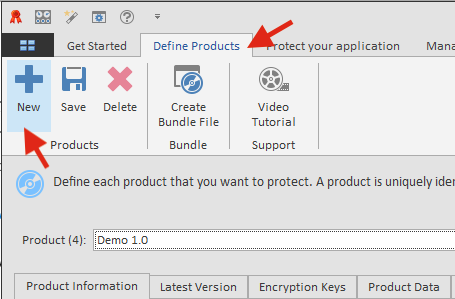
The first step in creating license keys for your products is to define each product. Click on the Define Products tab and then click on New.
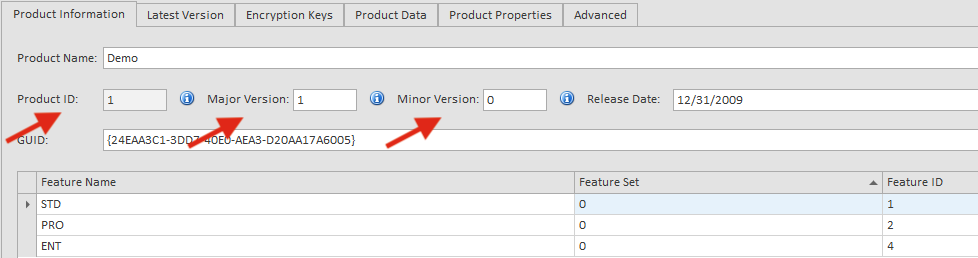
Enter the Product Name, the Major and Minor version of the product. The Product ID and the GUID fields are automatically generated. You will need these values when you use the API to validate license keys. You can associate up to 32 features with each product.
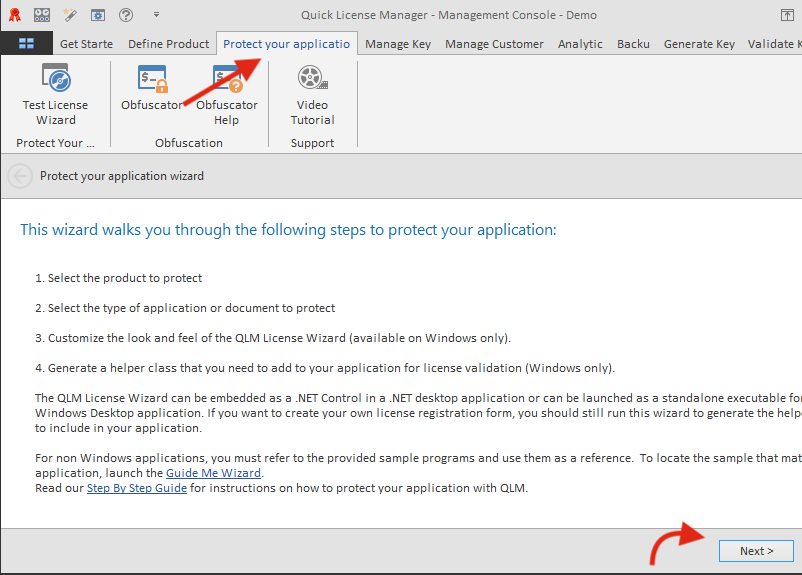
To integrate QLM with your application, you need to do the following:
For more details about specific APIs, refer to the API reference found in the online help.
Several sample applications are included in the Samples folder developed in VB6, VC6, VB.NET, C#, VC7, and Excel.
Once you have defined your products, you can generate license keys for each product. There are 2 types of license keys: permanent, and evaluation keys. Evaluation keys can specify the duration of the evaluation, an expiry date or both.
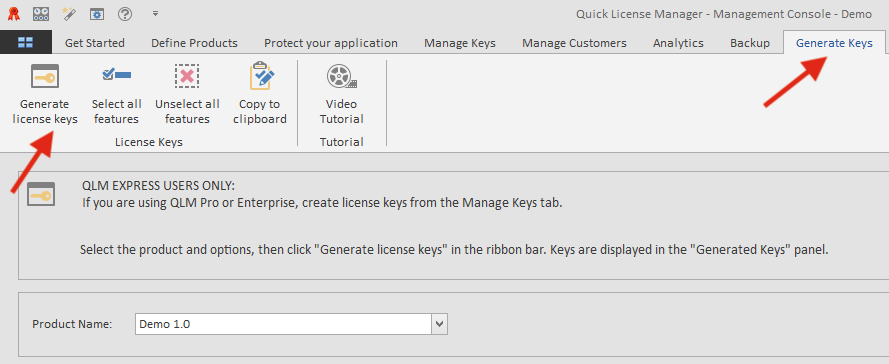
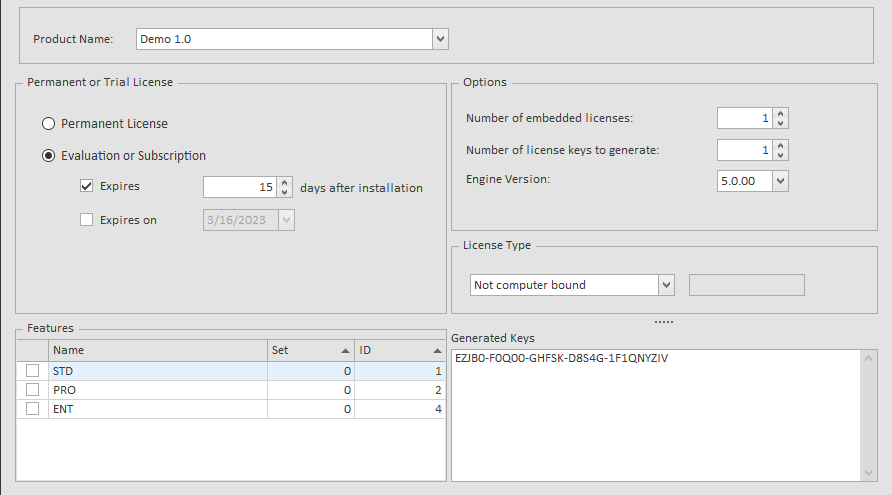
To generate license keys with QLM Express, click on the Generate Keys tab. Select a Product, the number of keys to generate, the type of keys to generate and then click on the Generate button. QLM Express does not store generated keys. It is up to the user to track the generated keys if needed. To track all generated license keys and manage their lifecycle, use QLM Pro.
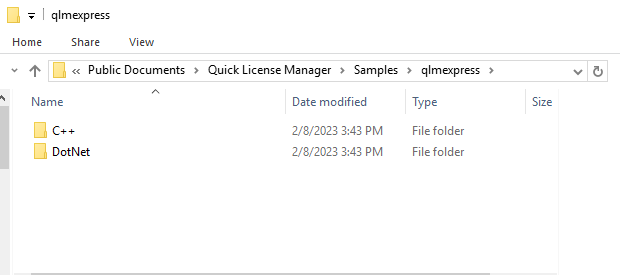
All QLM Express samples are located in the folder:
Samples are grouped by programming language.